
Quayline
Version 1.15.1 · released on 18 November 2026
A security-focused SSH and SFTP client for Linux, macOS and Windows 11.
Servers, credentials and keys are kept in an encrypted vault, on your machine only. The interface is available in English and French.
- Free software · GPL-3.0
- No telemetry
- Signed packages
- FIDO2 · OpenID Connect
Fedora: COPR repository (recommended)
sudo dnf copr enable matt-mpd/quaylinesudo dnf install quaylinePackages signed by COPR, Fedora’s build service, updated with dnf upgrade.
Other distributions: .deb package (Debian, Ubuntu) or Flatpak, no automatic updates.
Quayline-1.15.1-macos-arm64.dmg · 5.3 MB
Apple Silicon · signed and notarized by Apple
Quayline-1.15.1-windows-x64-setup.exe · 3.8 MB
x64 · no automatic updates
The installer is not signed yet: SmartScreen will show a warning. Click “More info”, then “Run anyway”.
Features
Everything you need to manage your servers, nothing that leaves your machine.
Terminal and SFTP
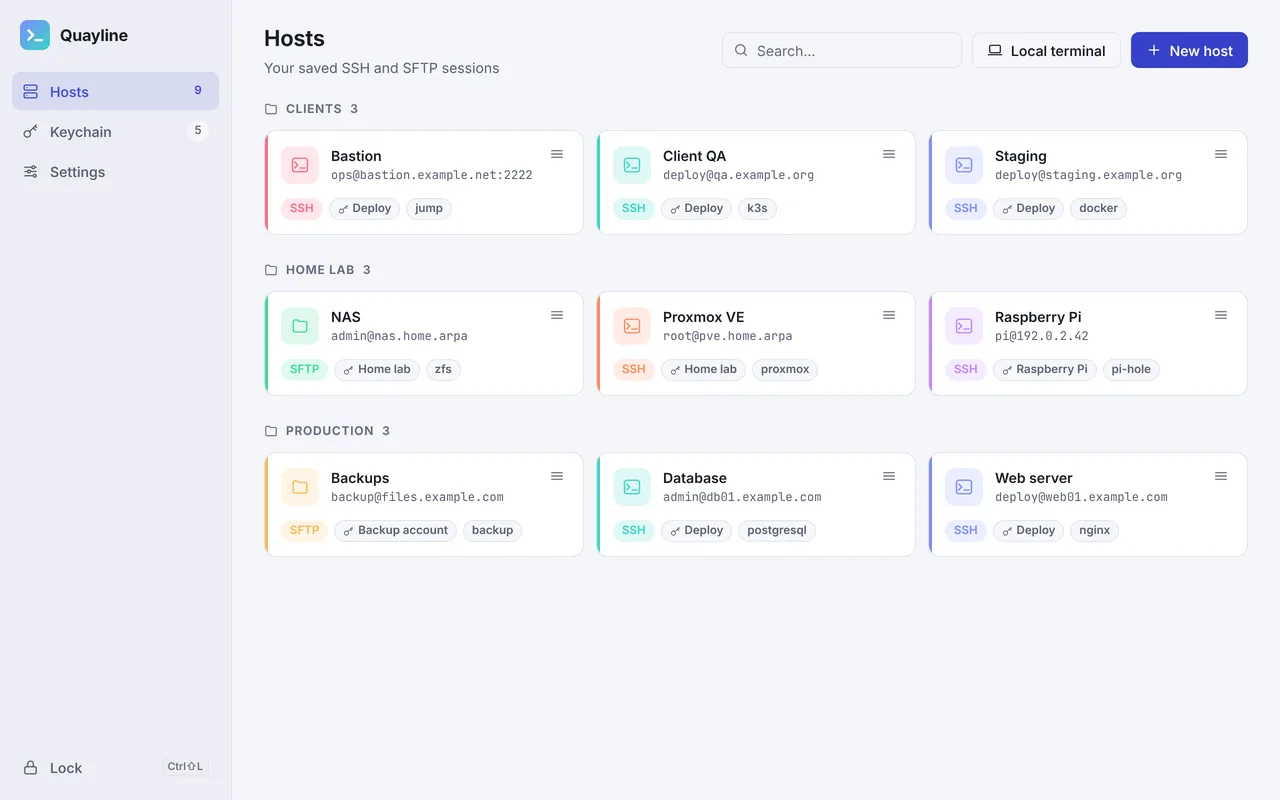
Tabbed SSH terminal and dual-pane SFTP browser (drag and drop, background transfers, permissions, sort by column); each one opens from the other; tmux and vim can copy to your clipboard (OSC 52, write only). Local terminal in a tab, next to SSH sessions (Ctrl+Shift+T, Cmd+T on macOS), except in the Flatpak, which stays isolated from the system.
Remote editing
Remote files can be edited in a built-in editor or in the system’s default application, changes being sent back to the server.
Encrypted vault
Servers, passwords and SSH keys, with encrypted export and import for backups or moving to another computer. An identity can be created without leaving the new host form.
Your choice of unlock
Master password, FIDO2 security key (YubiKey, Nitrokey…) or OpenID Connect identity provider (Pocket ID; Authentik, Authelia, Keycloak, Microsoft Entra ID and Google in beta), including from a phone via a QR code.
Automatic lock
After inactivity, when the session or screen is locked, and before sleep.
Checks and hygiene
Host key verification (blocking alert if it changes), password copy with automatic clipboard clearing (excluded from clipboard history), updates announced by the app (one-click install on macOS), light or dark theme.
Security
A fully encrypted vault
Everything is encrypted, including the server list; any tampering with the file is detected.
- Master password
- Argon2id 256 MiB, 3 passes
- Random data key
- XChaCha20-Poly1305 encrypted vault
Memory
The data key and secrets are wiped when the vault is locked, core dumps are disabled, the process cannot be traced (Linux, macOS).
One copy at a time
A second launch brings the open window to the front, and the vault file is reserved for the copy that unlocked it: two copies cannot overwrite each other’s changes.
Isolated interface
No secret is ever sent back to the web interface; strict content security policy, no remote resources.
Signed packages
The RPM, the Flatpak and the Windows installer come with checksums signed with the project key; COPR packages are signed by COPR, Fedora’s build service; the macOS app is signed and notarized by Apple.
The master password cannot be recovered. Backing up the vault file (it is encrypted) or making an encrypted export protects against losing the file, not against forgetting the password: keep it somewhere safe. Forgotten password: start over ↗
Read the full security model (in French) ↗ Report a vulnerability ↗
Install
Step-by-step installation
Fedora
The simplest way is the COPR repository: packages built and signed by COPR, Fedora’s build service, updated with the rest of the system (sudo dnf upgrade). Quayline does not appear in the Discover or GNOME Software catalog yet: install it from a terminal.
sudo dnf copr enable matt-mpd/quayline
sudo dnf install quayline
Or install the RPM by hand: from the latest release, download the RPM (Quayline-X.Y.Z-N.x86_64.rpm), SHA256SUMS and SHA256SUMS.asc, then check the signature and checksum before installing:
curl -fsSLO https://raw.githubusercontent.com/Meme-Pas-Dev/Quayline/main/packaging/signing-key.asc
gpg --dearmor < signing-key.asc > quayline.gpg
gpgv --keyring ./quayline.gpg SHA256SUMS.asc SHA256SUMS
sha256sum -c --ignore-missing SHA256SUMS
sudo dnf install ./Quayline-*.x86_64.rpm
For a manual install, update with the same steps and the new release (dnf replaces the previous version and keeps the vault).
Debian, Ubuntu
Coming soon: this package will be attached to an upcoming release. The instructions below will apply once it is published.
Preview package for Debian 12 or later, Ubuntu 22.04 or later and their derivatives (Linux Mint, Pop!_OS…). From the latest release, download the package (Quayline_X.Y.Z_amd64.deb), SHA256SUMS.deb and SHA256SUMS.deb.asc, then check and install it:
curl -fsSLO https://raw.githubusercontent.com/Meme-Pas-Dev/Quayline/main/packaging/signing-key.asc
gpg --dearmor < signing-key.asc > quayline.gpg
gpgv --keyring ./quayline.gpg SHA256SUMS.deb.asc SHA256SUMS.deb
sha256sum -c SHA256SUMS.deb
sudo apt install ./Quayline_*_amd64.deb
It is not updated automatically yet: the app announces new versions, to install the same way (apt replaces the previous version and keeps the vault). The vault is stored in ~/.local/share/dev.memepas.quayline/.
Flatpak
The Flatpak is checked the same way with SHA256SUMS.flatpak and SHA256SUMS.flatpak.asc, then installed with (GNOME runtime from Flathub):
flatpak install --user ./quayline.flatpakIt is not updated automatically: the app announces new versions, to install the same way (Flathub is planned). Its vault is stored in ~/.var/app/dev.memepas.quayline/.
macOS
Download Quayline-X.Y.Z-macos-arm64.dmg (Apple Silicon), then drag Quayline into Applications. The app is signed (Developer ID) and notarized by Apple, and installs its updates itself once you agree.
The vault is stored in ~/Library/Application Support/dev.memepas.quayline/.
Windows 11
Download Quayline-X.Y.Z-windows-x64-setup.exe and run it. The installer offers to install for the current user only (no administrator account needed) or for all users.
It is not signed yet: Windows SmartScreen shows “Windows protected your PC” (“More info” → “Run anyway”). You can check it against SHA256SUMS.windows, signed with the project key (SHA256SUMS.windows.asc):
Get-FileHash .\Quayline-*-windows-x64-setup.exeTo also check the signature of SHA256SUMS.windows.asc, you need GnuPG, provided on Windows by Gpg4win (gpg4win.org), and the project’s public key (signing-key.asc):
gpg --import signing-key.asc
gpg --verify SHA256SUMS.windows.asc SHA256SUMS.windows
Security keys (FIDO2) go through Windows’ own window (key choice, PIN, touch). The vault is stored in %APPDATA%\dev.memepas.quayline\.
Two differences with Linux and macOS, as long as the installer is not signed: updates are installed by hand (the app announces new versions, to install the same way; the vault is kept), and the local terminal is off by default (Settings → Terminal), as some corporate security software (EDR) blocks an unsigned program that opens a console.
Privacy
Quayline sends no telemetry. It only connects to the servers and identity provider you configure and, if you allow it (asked once), to GitHub to check for a new version.
Free software
Distributed under the GNU GPL version 3 or later. Any modified version that is redistributed must be released under the same license, with its source code.